


On the «Settings» page you change your first and last name, password and language, connect Telegram, choose notifications and enter your SAPE project ID. It opens from the «Account → Settings» menu and is available even without a paid subscription.
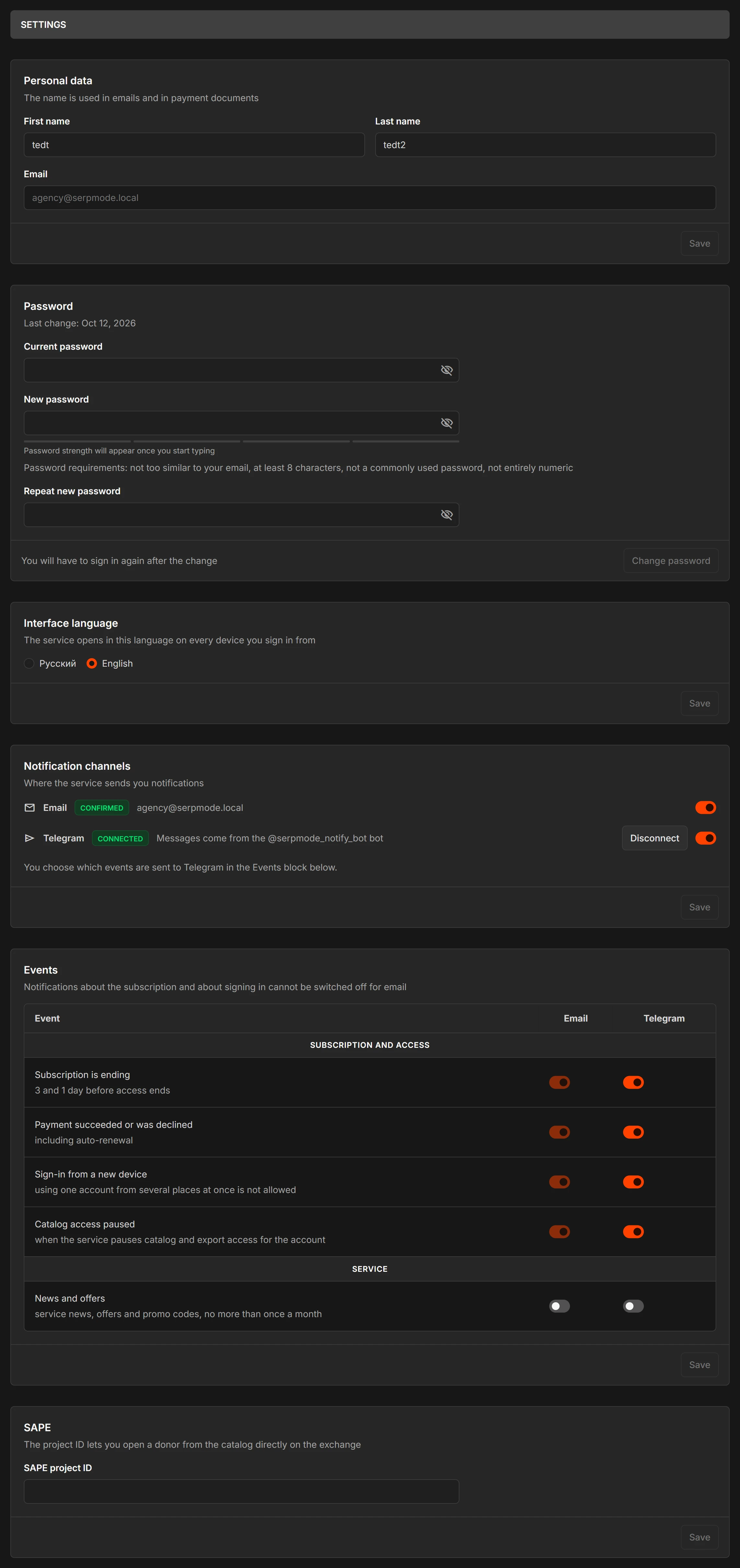
Page blocks
The page consists of separate cards from top to bottom. Each has its own «Save» button.
- Personal info. Hint: «The name is used in emails and in payment documents». The «First name» and «Last name» fields are optional. «Email» is shown but cannot be changed here: it is your login. How to change it is described on the page «How to change your password or email».
- Password. The date of the last change is shown. Fields «Current password», «New password» and «Repeat new password», button «Change password»: read more.
- Interface language. A switch between «Russian» and «English». Hint: «The service opens in this language on every device you sign in from».
- Notification channels. Hint: «Where the service sends you notifications». Two channels: «Email» (badge «Confirmed») and «Telegram» (badge «Connected» when the bot is linked, and a «Disconnect» button). Each channel has its own switch: how to connect Telegram.
- Events. A table with the columns «Event», «Email» and «Telegram»: which notifications you receive.
- SAPE. The «SAPE project ID» field. Hint: «The project ID lets you open a donor from the catalog directly on the exchange». More: how to go to a donor on the exchange.
How to save changes
The «Save» button (in the password card it is called «Change password») is inactive until you change something. If you return the previous value, the button becomes inactive again.
Language
- You switch the language with the flag in the header or in the «Interface language» block.
- Your choice is saved in your account.
- Emails and Telegram messages arrive in the language of your account.
Theme
The theme, light or dark, is switched with the sun or moon icon in the header.
Time
Time in emails is Moscow time. There is no time zone setting.