


To sign up, enter your email and password, choose what you do and give your consent to the processing of personal data. Then confirm your email with the link from the message: you cannot sign in until the email is confirmed.
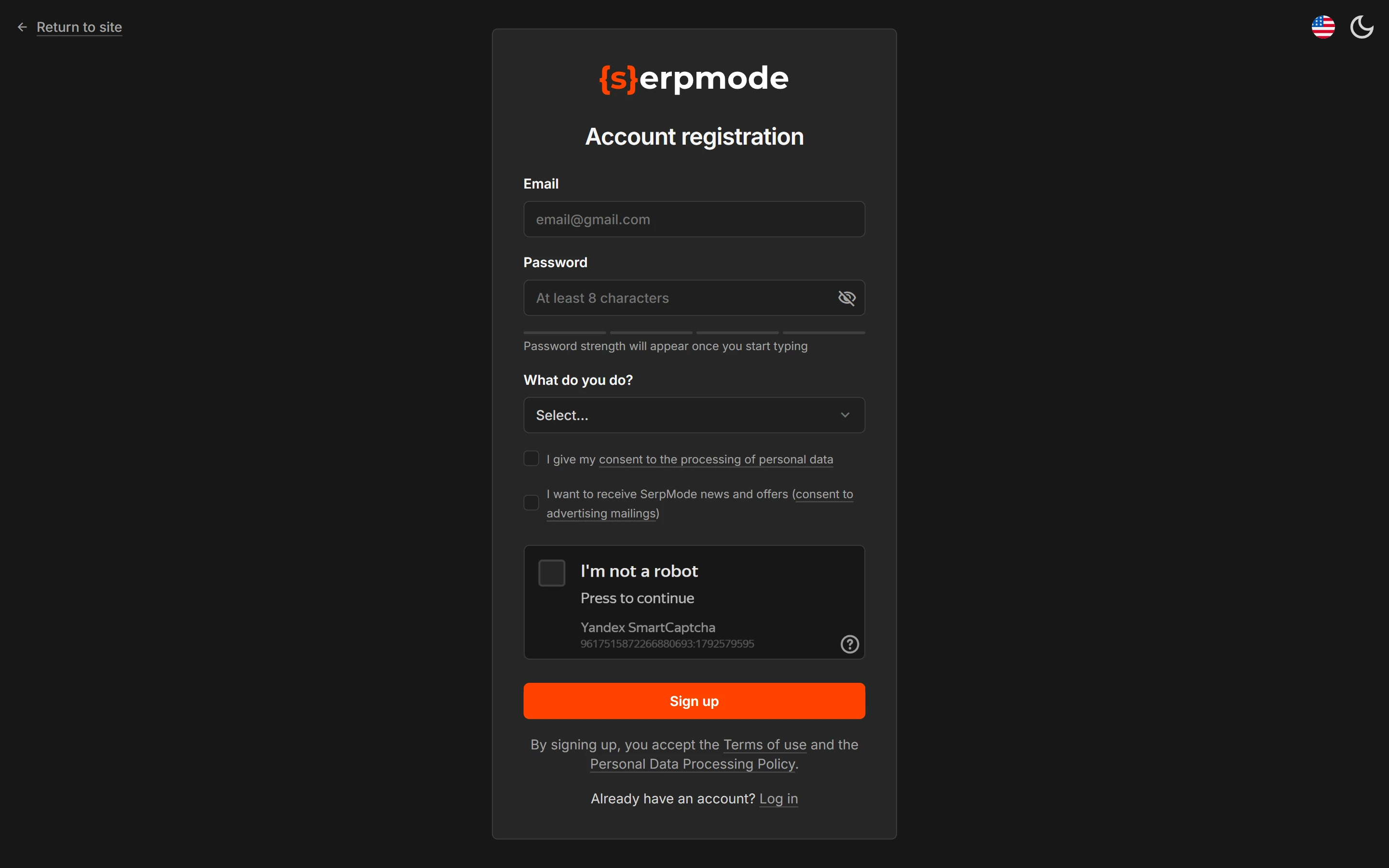
How to sign up
- Open app.serpmode.com and click «Sign up» under the sign-in form.
- The «Account registration» page opens. Enter «Email» and «Password» (the hint in the field: «At least 8 characters»). The «eye» icon shows the password, and the bar under the field shows how strong it is.
- In the «What do you do?» list, choose your option: «Agency SEO specialist», «In-house SEO specialist», «SEO freelancer», «Link builder», «Agency head», «Webmaster», «Marketer», «Business owner». If none fits, choose «Other» and write your answer in the «Your occupation» field.
- Complete the «I’m not a robot» check.
- Tick the checkboxes:
- «I give my consent to the processing of personal data»: this checkbox is required;
- «I want to receive SerpMode news and offers (marketing consent)»: you can leave this one unticked.
Neither checkbox is ticked in advance.
- Click «Sign up». By clicking the button, you accept the Terms of Use and the Personal Data Processing Policy.
You can add your first and last name later on the «Settings» page.
Confirm your email
After you sign up, the «Check your email» screen opens. Open the message from noreply@serpmode.com and click the «Confirm email» button in it. If the button does not work, copy the link from the message into your browser’s address bar. The link works once.
Signing up does not give you a trial. The trial comes with linking a bank card: how to get the trial. Until you link a card and buy a plan, the «No access to the catalog» screen opens instead of the catalog.
If the message did not arrive
- Check the «Spam» folder and that the address is correct.
- Add noreply@serpmode.com to your contacts.
- Try to sign in: until the email is confirmed, sign-in will not open, and the message is sent again.
If this email is already registered
The service offers you to sign in or reset your password. How to do it is described on the page «Sign in, log out and reset your password».