


Mark a donor with the «Favorites» icon to come back to it later, or with the «Blacklist» icon to remove it from the catalog. The lists are personal: only you see them.
The «Favorites and blacklist» feature is not on the «Freelancer» plan. If it is not on your plan, there will be no icons or tabs on the screen.
How to mark a domain
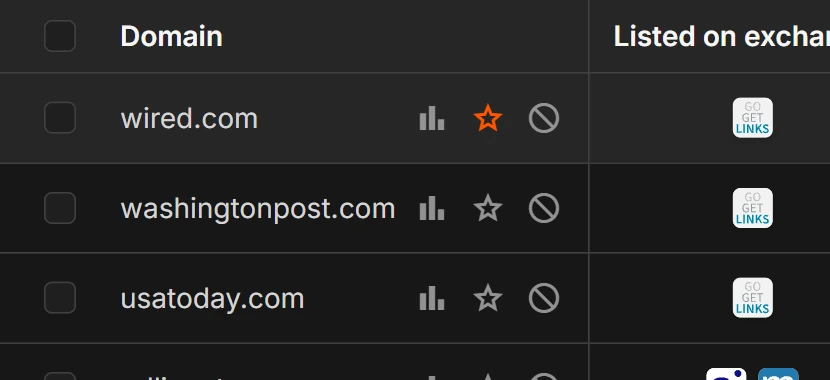
In the «Domain» cell, the «Favorites» and «Blacklist» icons are to the right of the name.
- Click the «Favorites» or «Blacklist» icon in the row of the domain you need. The page does not reload, the icon changes color in place.
- To remove the mark, click the same icon again.
- If you click the other icon, the domain moves to the other list. A domain cannot be in both lists at once.
List tabs
Above the table, next to the search, there are the tab icons «All», «Favorites» and «Blacklist». Filters, search and sorting also work inside the tabs.
What the blacklist does
- A blacklisted domain is hidden on the «All» tab and is left out of the export by selection («Export the table»). It is visible only on the «Blacklist» tab.
- To bring a domain back, open the «Blacklist» tab and remove the mark.
- Favorites, on the contrary, stay on the «All» tab.
Bulk actions
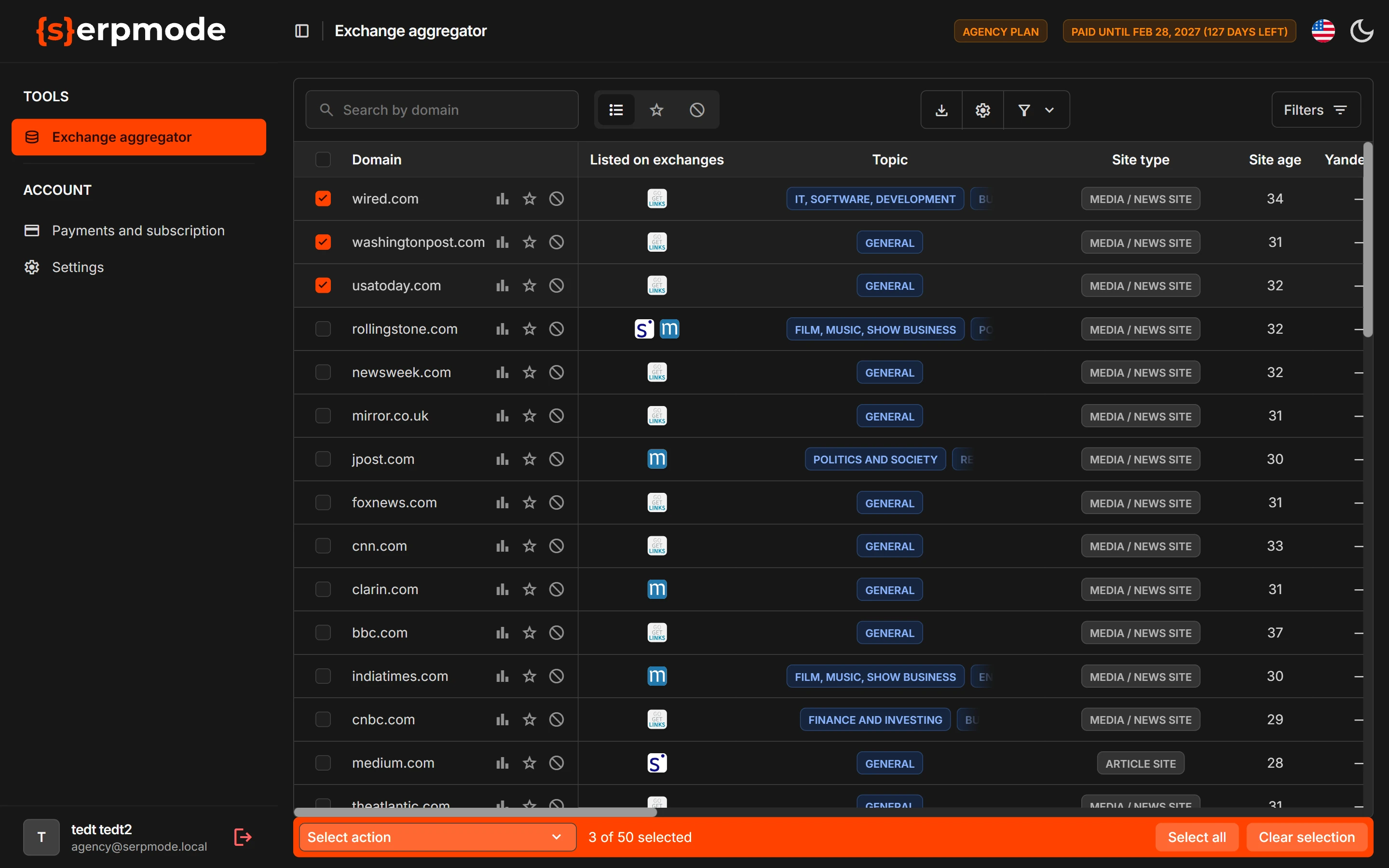
- Mark the rows you need with the checkboxes. The selection is kept when you flip through pages and is reset when you change a filter.
- A bar appears at the bottom with text like «3 of 50 selected». To take the whole selection and not just one page, click «Select all». To clear the selection, click «Clear selection».
- In the «Select action» list, choose «Add to favorites» or «Add to blacklist».
- Click «Run». The button appears after you choose an action.
When it is done, the service shows how many domains were marked and how many were already in the list.
You can use the same list of actions to export the marked rows: «Export donors» (more).
Importing a list from a file
On the «Favorites» and «Blacklist» tabs, you can upload many domains at once.
- Open the tab you need.
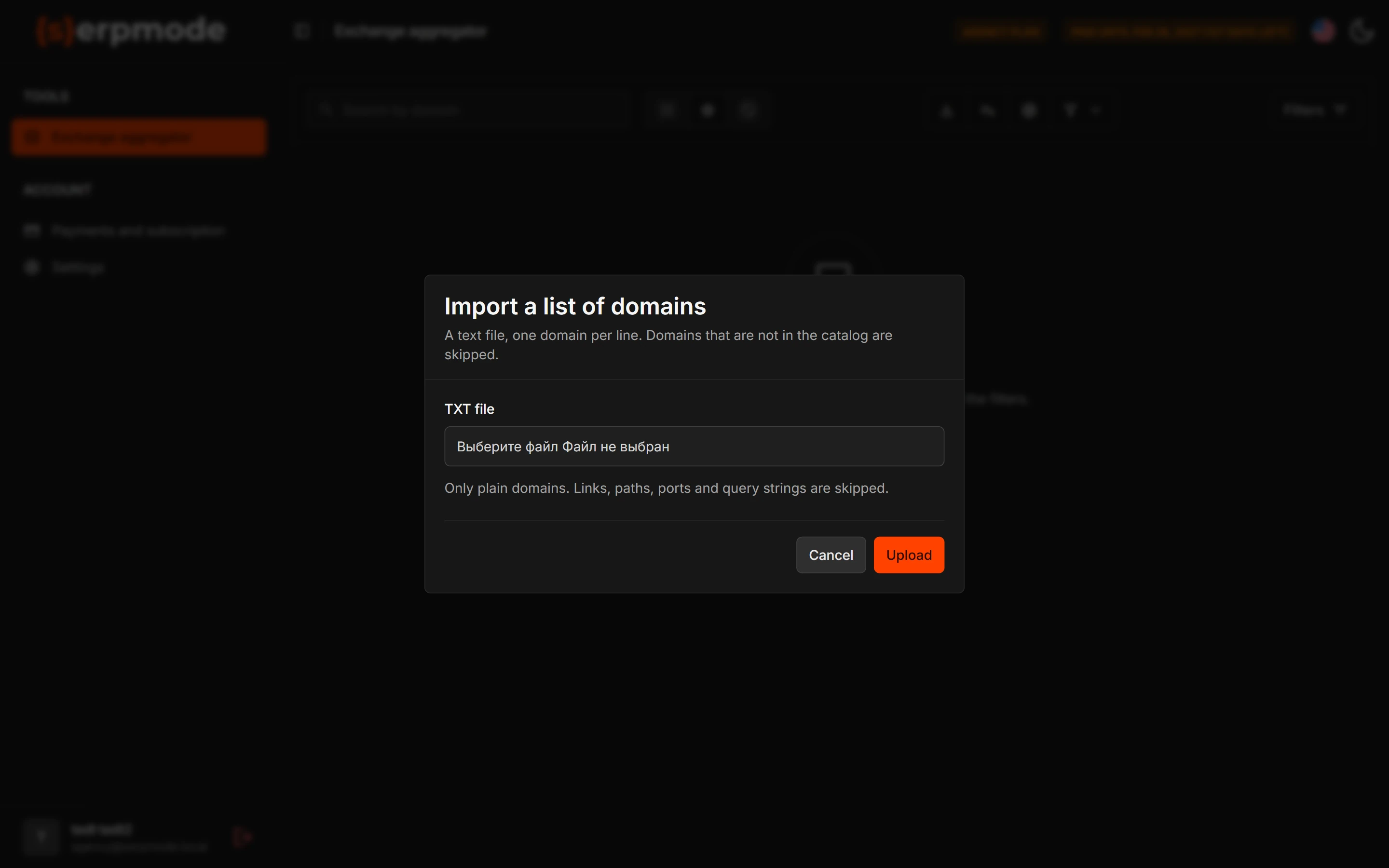
- Click the «Import a list» button in the panel above the table. It is not on the «All» tab. The «Import a list of domains» window opens.
- In the «TXT file» field, choose a text file (.txt or .csv). It has one domain per line. The file size is up to 5 MB and 50,000 lines. Domains that are not in the catalog are not marked. Links, paths, ports and parameters are skipped.
- Click «Upload» (or «Cancel» to close the window).
- After the upload, you see the result: how many lines were read, how many domains were marked and how many were not found in the catalog.
You can write addresses in any form: www.Example.RU/ and example.ru count as one domain. Only domains that are in the catalog can be marked.
If the lists are empty
An empty tab says «No results found» and «Nothing matches these conditions. Loosen or reset the filters.» Click «Reset filters».
If a domain is not on the tab
- The domain may have ended up in the blacklist: open the tab of that name.
- The domain may not be in the catalog. Then it will not be found when you upload a file either. See «Why a domain is not in the catalog».