


In 5 minutes you can go the whole way: set filters, sort the table by the «SerpMode DR» scoring, mark suitable donors and export them to Excel. You buy the link on the exchange itself.
The catalog is open during the trial and with a paid subscription. Without them, the «No access to the catalog» screen opens instead of the catalog: how to get the trial.
Which features you have depends on your plan. If you don’t see a button or a column from these instructions, see «Plans: what is included and how to choose».
Steps
- Open the catalog. In the left menu, choose «Tools → Exchange aggregator».
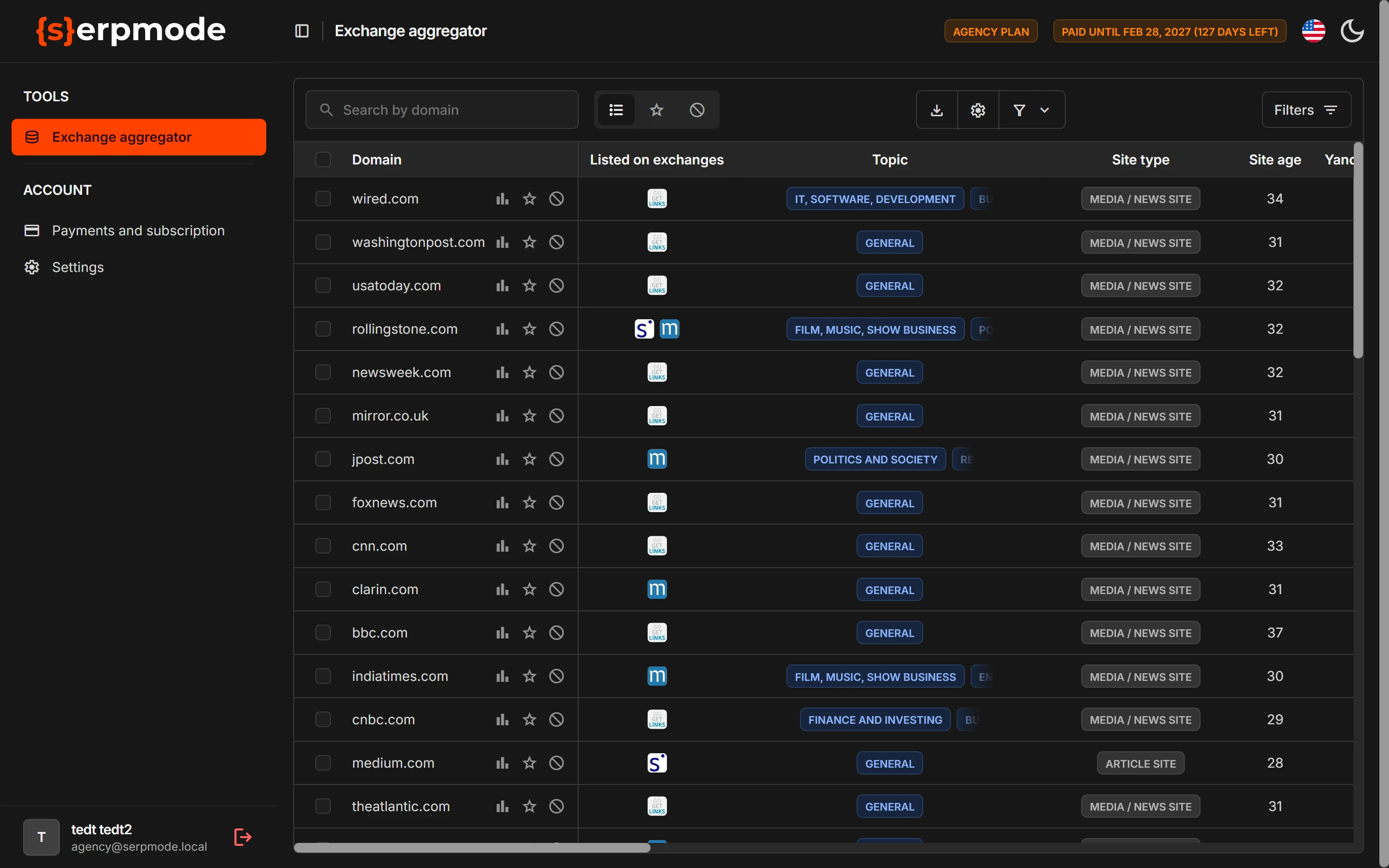
- Set filters. Click the «Filters» button at the right above the table. Choose a topic, domain zone or country, set the price «From» and «To» in the «Best price» block, and set the lower scoring limit in the «SerpMode DR» block.
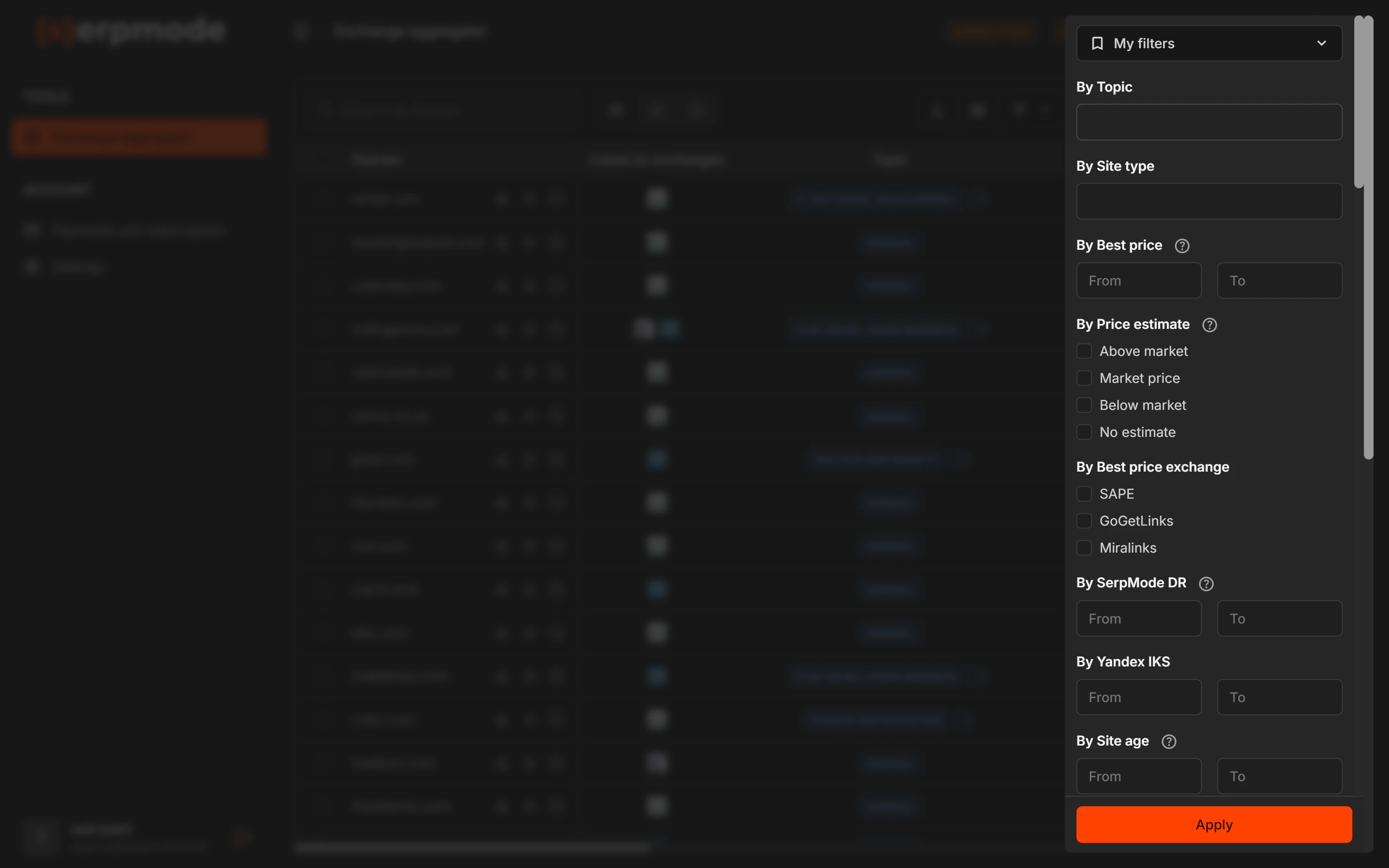
- Apply the filters. Click «Apply» at the bottom of the panel. All filters work together.
- Sort by scoring. By default, the table is already sorted by the «SerpMode DR» column from highest to lowest. The direction changes with the «Toggle sorting» icon in the column header. If the scoring is not on your plan, the table is sorted by domain.
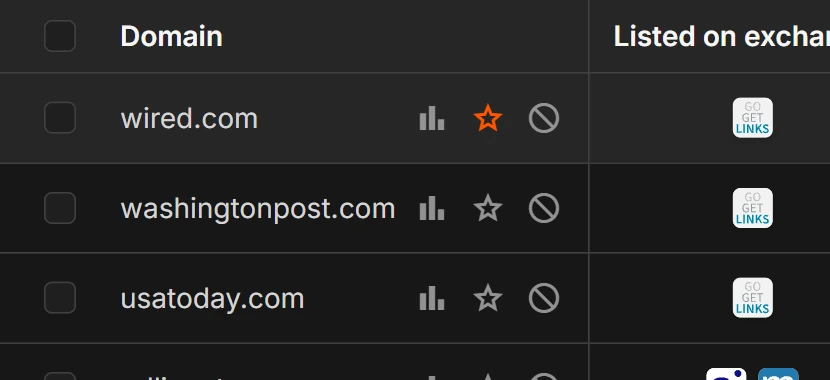
- Mark suitable donors. In the domain row, click the «Favorites» icon (a star). Or tick the checkboxes to the left of the rows, choose the «Export donors» action at the bottom and click «Run»: the Excel file will contain only the marked rows. Export is limited by your plan’s limit.

- Go to the donor on the exchange. In the «Where to buy?» column, click the exchange icon. Check the current price and availability of the site on the exchange, and place the order there.
The main idea
To find a strong donor at a low price, combine a price filter with sorting by scoring. The price is not part of the scoring, so look at the scoring and the price separately. «SerpMode DR» gives a score, not a recommendation to buy: how to read it.
Tip: save a filter set
If you choose donors regularly, save a filter set and open it once a week. Apply the filters: the «Save» button appears next to the «Apply» button. Click it, enter a name for the set in the «Saving a filter» window, and the set appears at the top of the panel in the «My filters» list. The feature is not included in all plans.