


To select donors, use the «Filters» panel on the right and click «Apply». To find a specific site, enter its name in the «Search by domain» field.
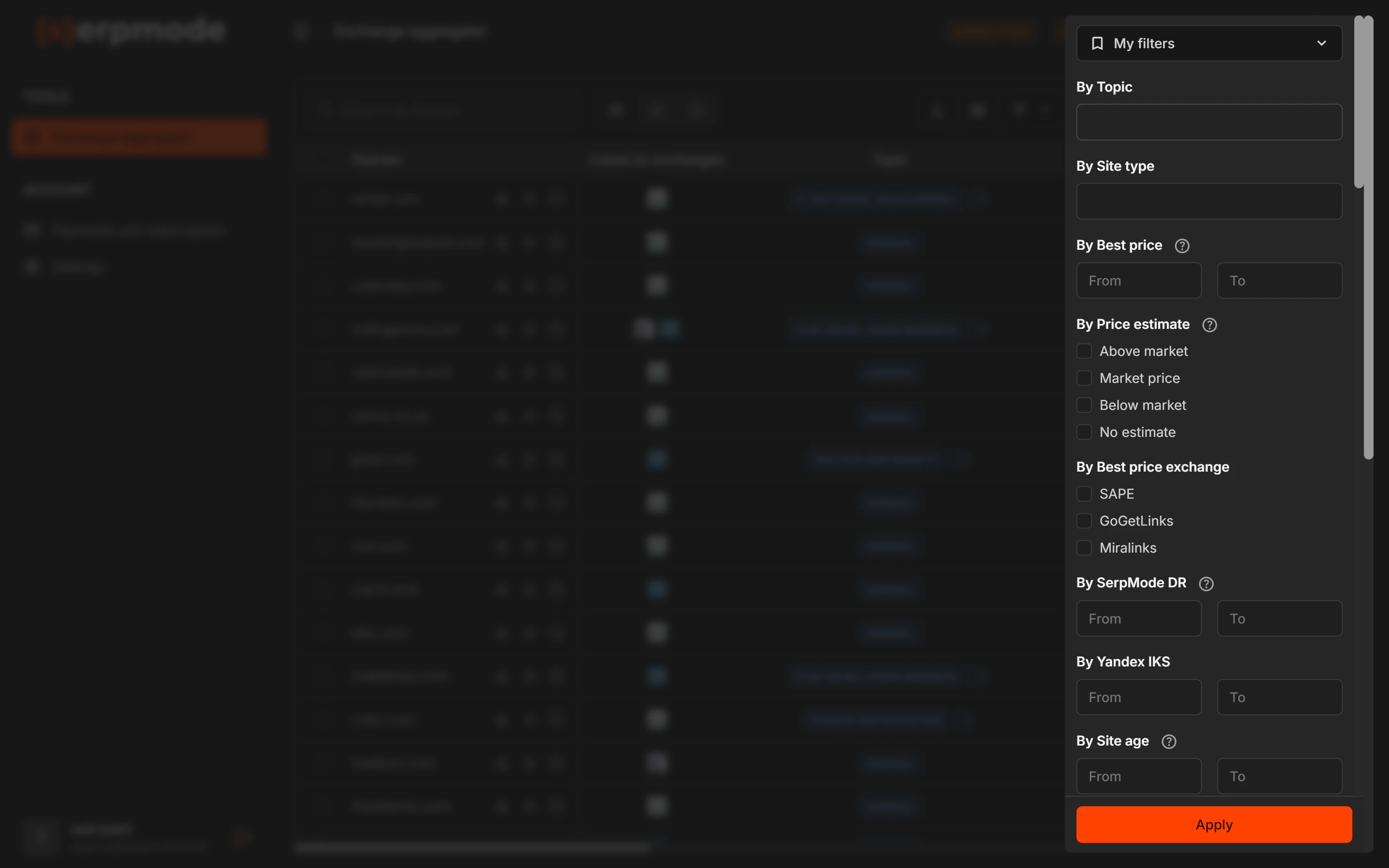
How to apply filters
- Set the conditions in the filters you need.
- Click «Apply» at the bottom of the panel. All conditions are applied at once, not one by one.
- When a selection is set, the «Save» and «Reset» buttons appear next to «Apply». «Reset» removes all conditions.
Types of filters
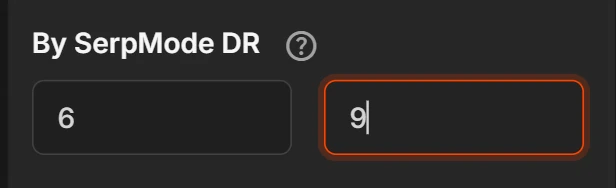
- Numeric filters are set with a range: the «From» and «To» fields. You can fill in just one of them.
- Lists and checkboxes let you choose several values at once. A donor with any of the chosen values fits. The «Domain zone», «Country» and «Language» lists have an «All» item.
- Switches, for example «All», «Domains», «Subdomains».
Next to the names of some filters there is a «?» sign with a hint.
Link to filters
The filter conditions are written into the page address. If your plan does not have some filter, that condition is simply dropped when the page opens.
Which filters there are
The list depends on the plan. Filters are arranged in groups, like columns.
The «Main» group
- «By Topic»: a list with search. You can also find a topic by an English word.
- «By Site type»: a list with an «All» item, for example «Blog / informational site», «Online store», «Media / news site», «Company website», «Forum / community».
- «By title»: hint «Search by keywords in the title tag». Hint in the field: «Up to 5 keywords: one per line or comma-separated». Availability depends on the plan.
- «By text»: hint «Search by keywords in the text of the site’s main page». Hint in the field: «Up to 5 keywords: one per line or comma-separated». Availability depends on the plan.
- «Site age»: hint «Site age in years».
- «By Yandex IKS».
- «Best price»: hint «Price range».
- «Price estimate»: checkboxes «Below market», «Market price», «Above market» and «No estimate». More: «Price estimate: overpriced or fair market». Availability of the filter depends on the plan.
- «By Best price exchange»: checkboxes SAPE, GoGetLinks, Miralinks. Shows donors whose lowest price is on the chosen exchange.
- «By Exchange»: checkboxes of the exchanges. Shows donors that are sold on the chosen exchange.
- «SerpMode DR»: a score range from 0 to 10.
- «By Domain or subdomain»: a switch «All», «Domains», «Subdomains». More: «Domains and subdomains».
The «GEO» group
- «By Domain zone».
- «By Country».
- «By Region»: Asia, Africa, Middle East, Europe, Latin America, Oceania, CIS, North America.
- «By Language».
- «Country by Ahrefs»: hint «The first country of the domain’s top countries by Ahrefs traffic». The filter selects domains whose country with the largest share of traffic matches the chosen one. Example: a domain has 50% of its traffic from the United Kingdom and 40% from the United States, so it will not be found with the «United States» filter. If several countries are chosen, any of them fits. Availability of the filter depends on the plan.
More about GEO: «Zone, country, region and language of a site».
The «Ahrefs» group
Ranges based on Ahrefs data: DR, links, DoFollow and NoFollow links, shares (%) of DoFollow and NoFollow links, domains, DoFollow and NoFollow domains, shares (%) of DoFollow and NoFollow domains, traffic. The «Traffic trend» filter selects donors by traffic status: tick the statuses you need. More: «Traffic trend: is the site growing or declining». Availability of the filter depends on the plan.
The «Majestic» group
Ranges based on Majestic data: TF, CF, TF/CF, domains, links, IP, subnets, EDU domains, GOV domains.
Search by domain
The «Search by domain» field searches by the domain name only: enter part of the name. To clear the field, click the cross in it. The search works together with filters and inside the «Favorites» and «Blacklist» tabs.
How to hide a filter or change the order
You can hide extra filters and rearrange the rest in «Catalog settings» (the «Filters» tab). More: «Catalog settings». If you hide a filter that is used in the selection, the selection by it is removed.
If nothing was found
- Click «Reset» (the button next to «Apply») and check whether one of the filters is getting in the way.
- Check the tab: the «All» tab does not show domains from your blacklist.
- The domain may not be in the catalog. The reasons are on the page «Why a domain is not in the catalog».