


The «Catalog settings» gear above the table opens a drawer on the right. In it, you choose which columns to show, which filters to keep in the panel and in what order they go.
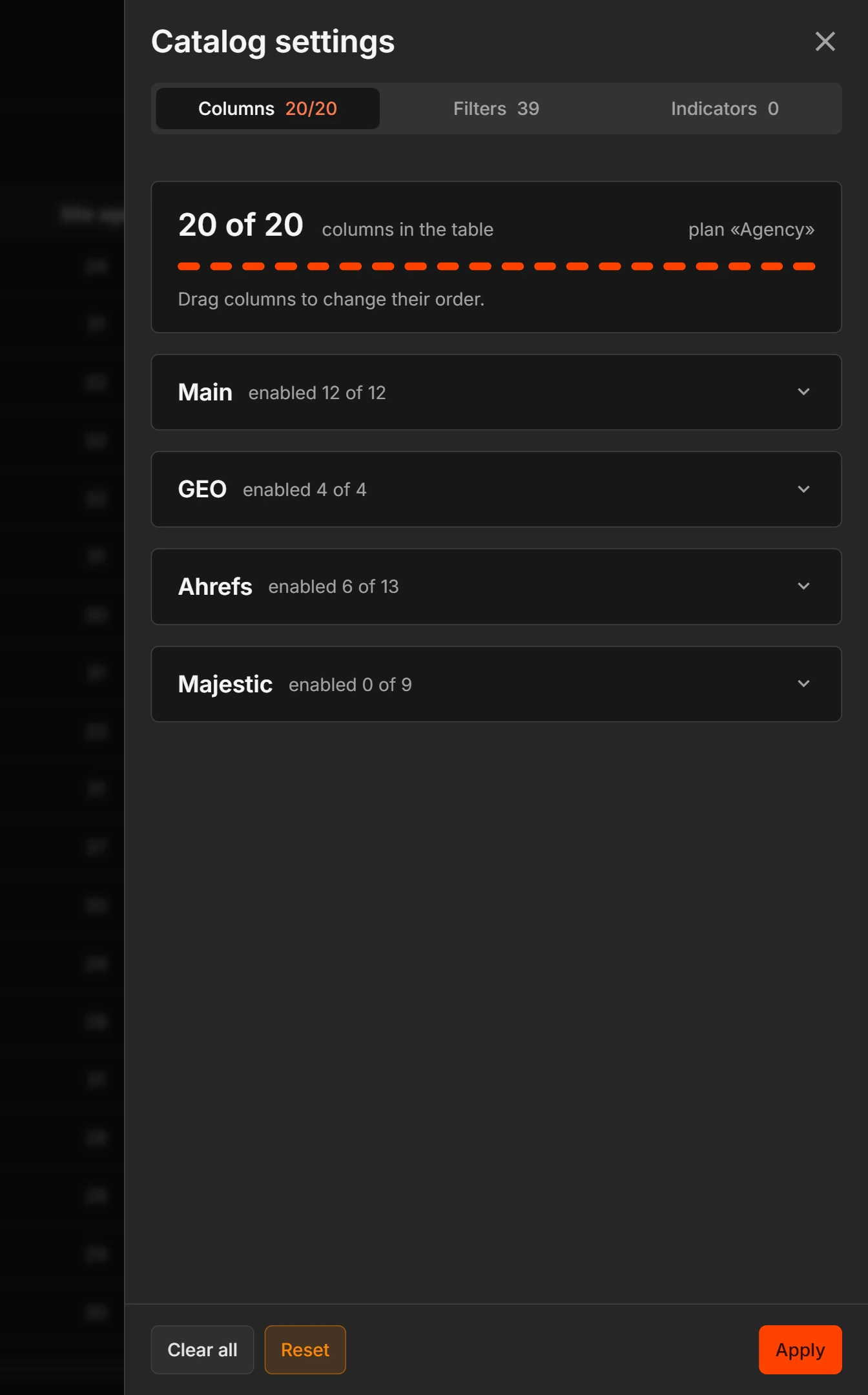
Drawer tabs
At the top of the drawer there are tabs with counters, for example «Columns 20/20», «Filters 36», «Indicators 0» (about indicators). A tab is visible only if the feature is in your plan. Right now, «Column settings», «Filter settings» and «Indicators» are on all plans.
In all tabs, rows are arranged in groups: «Main», «GEO», «Ahrefs», «Majestic». Next to the group name it shows how many in it are on, for example «enabled N of M». Groups can be collapsed.
Columns
- Click the «Catalog settings» gear and open the «Columns» tab.
- Tick the columns you want to see.
- To change the order, drag a row with the mouse. You can drag within a group: you cannot move a row from one group to another.
- Click «Apply».
The tab name shows «Columns N/L». N is how many columns are on, and L is the limit of your plan. At the top of the tab there is a card like «20 of 20 columns in the table» with your plan, for example «Agency». The hint: «Drag columns to change their order». When the limit is reached, the other checkboxes dim: to switch on a new column, switch off another one first. The limit depends on the plan: 10 columns («Freelancer»), 15 («Team») or 20 («Agency»).
Buttons at the bottom of the tab:
- «Clear all» removes all checkmarks that can be removed.
- «Reset» returns the default set of columns.
- «Apply» saves your choice.
«Apply» saves the changes in all drawer tabs where you changed something. You can tick columns, hide filters, set up indicators and click «Apply» once. Tabs you did not touch do not change. After saving, the message «Changes are saved» appears. «Reset» returns the values of only the tab where you clicked it.
The «Domain» column cannot be switched off. It is pinned first and does not count toward the limit.
Where the set is stored
The set of columns is stored in your account and is the same on any device. If the limit of your plan became smaller, the extra columns are not shown in the table.
Export file
The set of columns on the screen does not narrow the export file: the file includes all columns that your plan opens (more).
Filters
The «Filters» tab shows how many filters there are in each group. The hint on the tab: «You can change the order of filters in the right panel or hide the ones you do not need».
- Switch a filter’s toggle on or off to show it in the panel or hide it.
- Drag a row to change the order within a group.
- The «My filters» block is pinned first and is not counted in the groups.
- If you hid a filter that was used in the selection, the selection by it is removed. The other conditions, search and sorting stay.