


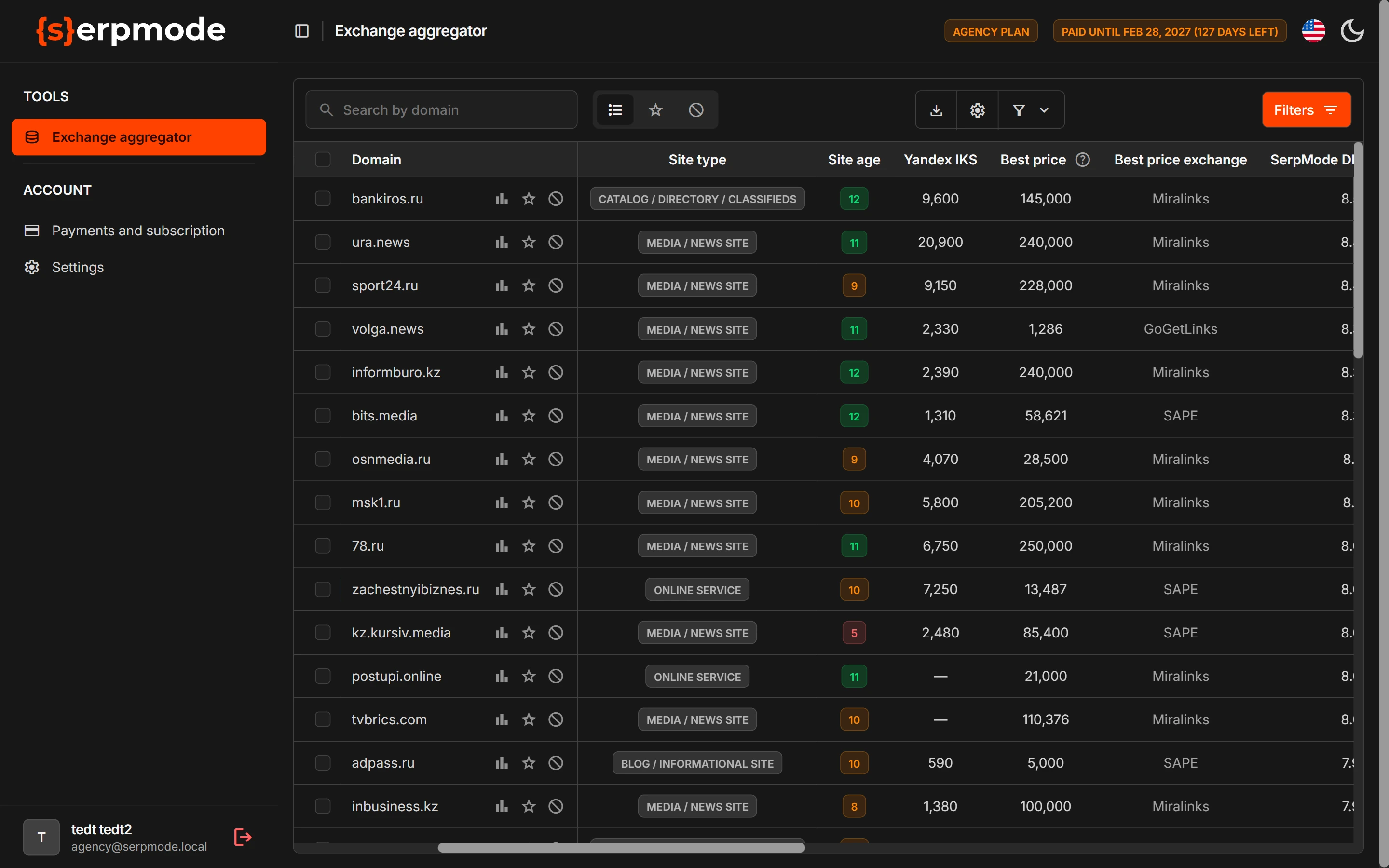
Indicators color the values in the table red, orange or green, so you can see good and bad values at once. The color depends on two thresholds that you set for each metric yourself. The highlighting also goes into the export file.
How to turn them on
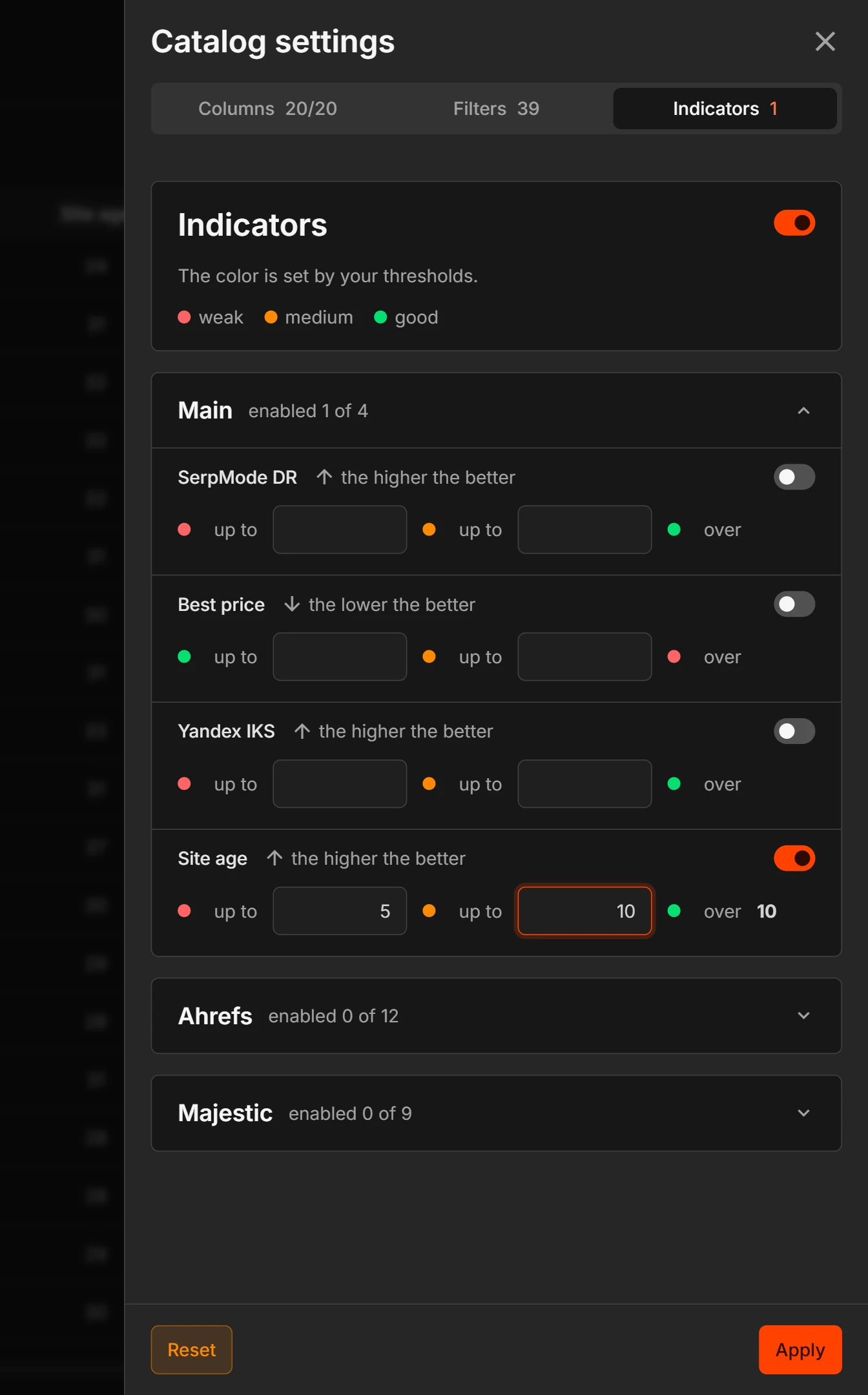
- Click the «Catalog settings» gear and open the «Indicators» tab.
- Turn on the main switch.
- In the row of the metric you need, turn on its switch and set two thresholds: a lower and an upper one. The three threshold fields are labeled «up to», «up to» and «over».
- Click «Apply».
Under the tab title it says: «The color is set by your thresholds». Next to it is the color legend: «weak» (red), «medium» (orange), «good» (green). The «Reset» button at the bottom of the tab returns the default thresholds.
Indicators are off by default.
The «Indicators» feature is currently available on all plans. If it is not available, the table highlights only «SerpMode DR», using the SerpMode thresholds.
How the color is chosen
A value falls into one of three steps. A boundary value belongs to its own step.
Example: thresholds 5 and 10, higher is better.
| Value | Color |
|---|---|
| 5 or less | Red |
| From 6 to 10 inclusive | Orange |
| 11 or more | Green |
Each metric in the drawer shows its direction: «the higher the better» or «the lower the better». For «the lower the better» metrics the colors are reversed. There are five such metrics: «Best price» and the Ahrefs NoFollow metrics («Ahrefs NoFollow links», «% Ahrefs NoFollow links», «Ahrefs Domains NoFollow», «% Ahrefs Domains NoFollow»).
What is colored and what is not
- Zero is colored, but an empty value is not. For details, see «Empty value, zero and dash».
- Only the columns that are in your table now are highlighted.
- The «column hidden» badge means the metric is set up, but its column is not in the table. Turn the column on in «Catalog settings» and the highlighting will appear.
If the settings are not saved
The settings are not saved if the lower threshold is greater than the upper one, or if a field contains something other than a number. The previous thresholds stay unchanged. Fix the values and click «Apply» again.