


Open «Account → Payments and subscription», choose a plan and period, click «Pay for the subscription» and pay on the page of the YooKassa payment service. Access opens after YooKassa confirms the payment, usually within a few seconds.
Steps
- Open «Account → Payments and subscription» and find the «Subscription renewal» block.
- Choose a plan and period.
- If you have a promo code, enter it and apply it (see Promo codes and period discounts).
- Check the calculation on the right: the line «<Plan>, <period>», the «To pay» amount, the phrase about when the period starts, and the rate line («The subscription costs {N} USD, charged in rubles at the rate of {rate} ₽ on {date}»). If the internal balance covers part of the amount, you see this in the calculation too.
- Click «Pay for the subscription», pay on the YooKassa page and return to the «Payments and subscription» page.
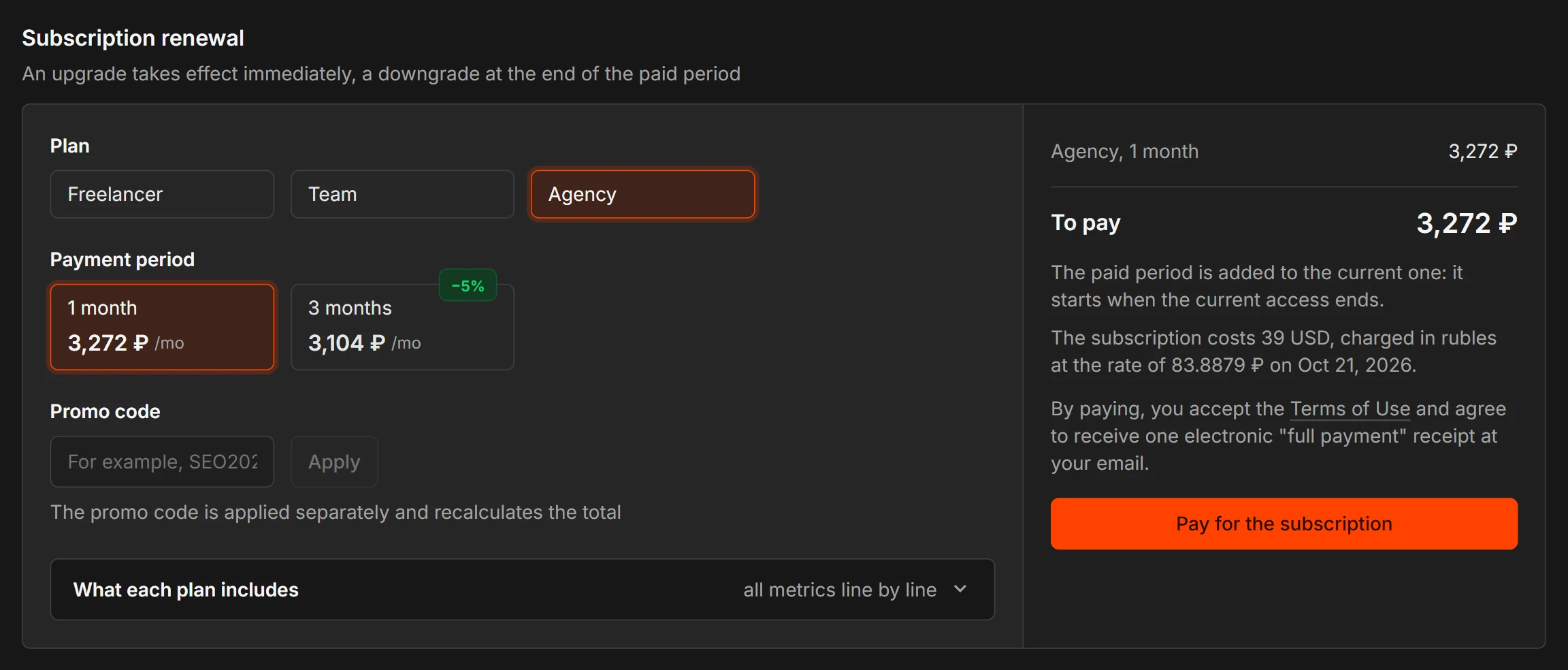
By paying, you accept the Terms of Use and agree to receive one electronic «full payment» receipt at your email.
How you can pay
On the YooKassa page you pay by bank card; there are no other methods now. The card is saved in the «Your cards» block, so auto-renewal can charge it: Bank cards.
Payment security
The full card number and CVC are entered on the page of the YooKassa payment service, which complies with PCI DSS, and never reach us. We store the card mask (first 6 and last 4 digits), its expiry date and the card brand.
What you will see after payment
After you return to the «Payments and subscription» page, a message appears:
- «Subscription activated. Access is open until …»: the payment went through, the plan works.
- «Payment received. The plan changes on …»: you bought a cheaper plan, and it takes effect after the current period (see Changing your plan).
- «The provider has not responded yet. We will check the payment ourselves and activate your access»: do not pay a second time, wait.
- «The payment was canceled» or «The payment did not go through»: what to do next is described in Payment statuses.
- «The payment went through, but the purchase could not be completed: …» means the calculation is out of date or the balance has already been used for another purchase. The payment is refunded to you in full by the same method you paid with. Make the purchase again.
The electronic receipt arrives at the account email: Receipts and payment documents.
If you pay during the trial period
The plan takes effect right after payment. The paid period is counted from the end date of the trial period, so the remaining trial days are not lost.
Which card becomes the primary card
The card you paid with becomes the primary card. About automatic renewal, read the page «Auto-renewal».