


The payment status is shown in the «Payments» table on the «Account → Payments and subscription» page. If the money was charged but you have no access, wait 15 minutes and check the payment status.
The «Payments» table
The table shows your 20 latest payments. Columns: date, operation, promo code, access period, to pay, deducted from balance, charged, status. In the «Operation» column there is a «Payment» or «Auto-renewal» badge and a line like «Agency, 1 month». If a payment did not give access (for example, it was refunded), the «Access period» column shows a dash.
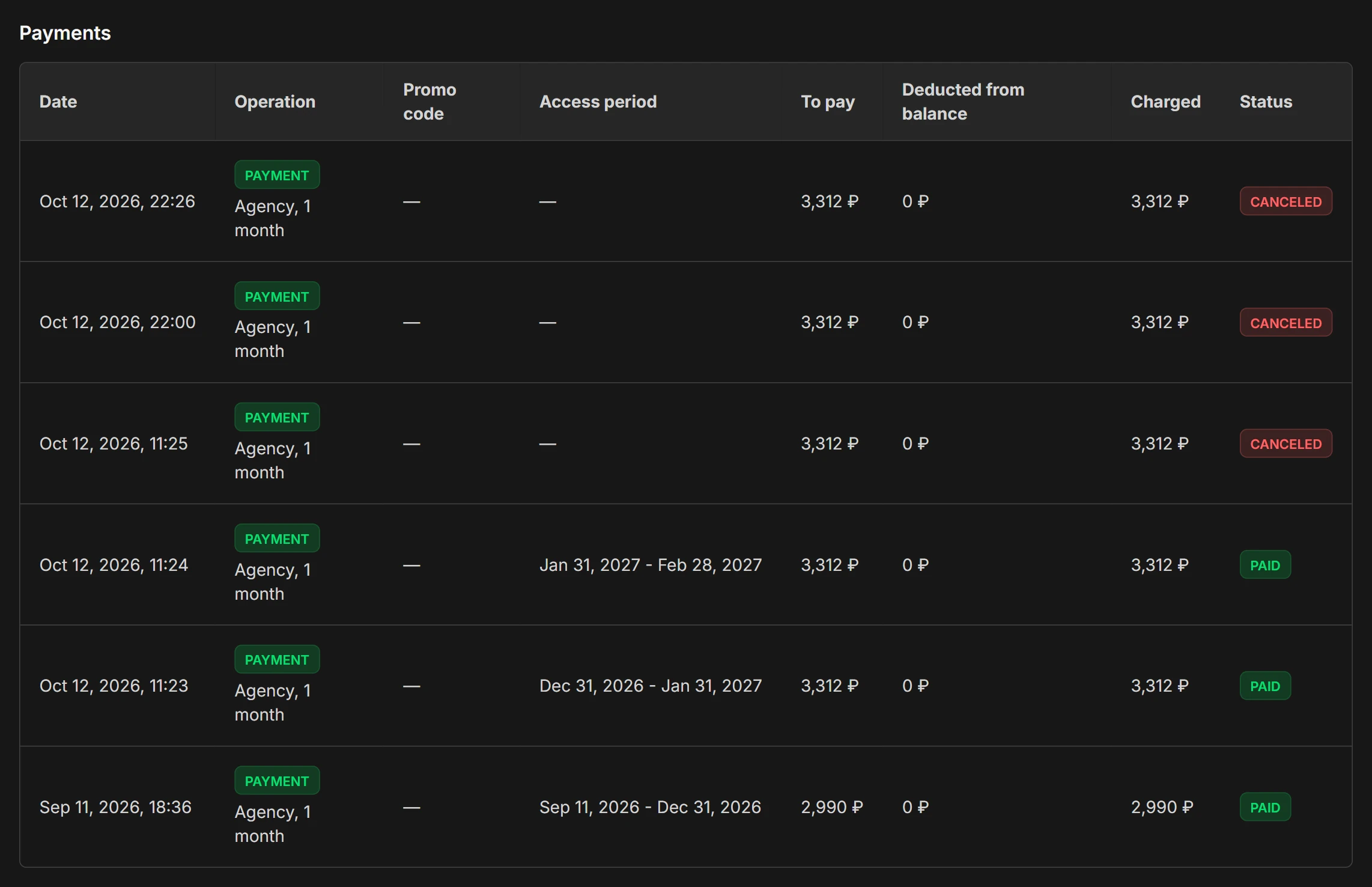
What the statuses mean
| Status | What it means | What to do |
|---|---|---|
| «Waiting for payment» | The payment is created, YooKassa has not confirmed it yet | If you did not finish paying, click «Continue payment» |
| «Paid» | The payment went through, access is open | Nothing |
| «Canceled» | The payment was not completed or was declined. A purchase fully paid from the balance is also canceled if the terms changed during checkout, for example the promo code ran out. The balance is not debited | Make a new payment, with another card if needed |
| «Failed» | YooKassa did not accept the payment | Try again later or make a new payment |
| «Refunded» | The purchase could not be made on the calculated terms: the payment arrived more than a day after the calculation, or the balance and the remainder of your previous plan were already spent on another purchase. The payment is refunded in full, you get an email and a refund receipt | Make the purchase again. The money returns to the same method you paid with, usually within a few days. The time depends on your bank |
| «Refund pending» | The same, but the automatic refund has not gone through yet | Nothing: we will refund the payment in full, usually right away and no later than 10 days after the payment. If the status does not change for longer, write to info@serpmode.com |
The «Continue payment» button
If you closed the YooKassa page without paying, the payment stays in the «Waiting for payment» status. Its row has a «Continue payment» button: it takes you back to the same payment page, and no new payment is created.
- The button works for a payment that is not older than a day. The YooKassa page itself lives for about an hour, then the payment is canceled.
- A payment older than a day cannot be continued: its price, rate and discount are out of date. Make a new one.
- If the payment can no longer be paid, you will see the message «This payment can no longer be paid. Place a new payment».
Messages about YooKassa
- «The provider has not responded yet. We will check the payment ourselves and activate your access»: do not pay a second time.
- «The payment provider is unavailable. Try again in a few minutes»: the payment may have gone through. Check its status first, and do not pay again.
- «The payment provider declined the payment. Try again later or contact support»: try later or use another card.
If a payment is declined, we also send you an email with the reason and advice on what to do.
If the money was charged but you have no access
- Wait 15 minutes. If you paid in time, the purchase is completed even if the confirmation from YooKassa arrives later: the day allowed for payment is counted up to the moment of payment.
- Open «Payments and subscription» and check the payment status.
- If the status is «Refunded» or «Refund pending», the payment is being refunded to you in full. Make the purchase again.
- If this did not help, write to info@serpmode.com: give the date, amount and status of the payment. Do not send your full card number or password.